
Week 12: Staying Current

I cannot believe this is my last blog post for this class. Time flew by this summer! For the last blog post, I looked at AASL Best Websites 2019 and found two I bookmarked because I really want to try them.

The first website that sounded awesome was Deck.Toys. This website works well with schools that are 1 to 1 (like mine) because the students login the link and get started. How is works is the teacher creates a “deck” where the students start that has different paths the students follow. It seems to be self-paced and the students can go different routes to complete the lesson. This could be used in both the classroom and the library. In the classroom, I would use this when I needed to do small groups. All students could get started on Deck.Toys and then as they are working, I could call individual students up to conference them about their writing. In the library, I could collaborate with the teacher to decide what she wants taught, and then this could kind of be like a “break out” box where students work together to complete the deck.

Deck.Toys. (2019). Retrieved from https://deck.toys/

The second website that sounded fun was NowComment . This website is an online discussion tool where students can discuss images, documents, or videos that reminds them of social media. I like this tool because not all students like speaking out loud; with Now Comment, they don’t have to do that. This generation better expresses themselves through computer on social media; this tool mimics that. In the library when collaborating with the social studies teacher, I could have propaganda photos up and the students could discuss its purpose, where it’s from, and how affective it is on now comment. I could also use this for March Madness in the library. I could put two books out each week and students could login and discuss what is the better book and why it should move on to the next round on the bracket. In the classroom, I could use this in my socratic seminar on the outer circle. While the inside circle is discussing, the outside could be as well with this tool.

Allison, P. (2018). NowComment.com. Retrieved from https://nowcomment.com/

As for the blog I would like to follow, I really liked The Mighty Little Librarian. This blog is run by a librarian named Tiffany Whitehead who uses technology and social media in her library. From her most recent post on poetry in the library for National Poetry Month, I was hooked. I also loved her reading competition and this is definitely something I want to do in my library in the future. Read more about it here.

Whitehead, T. (2009, October). Mighty Little Librarian [Web log post]. Retrieved from http://www.mightylittlelibrarian.com/

The AASL website and this blog definitely inspire me and spark ideas not only for the close future in my classroom for this coming school year, but for my future library as well. I will check these resources to get ideas of what activities I can do in the library and bring these ideas to the teachers that I will collaborate with in the library. When I become a librarian, I want to be teaching classes every day. That’s what I will miss most about teaching is being in the classroom and having my own set of kids. By using resources like this, teachers will want to bring their kids down to my library and use me. I already have so many ideas circulating in my head just from these websites; I even shared a couple with the AVID teacher at my school and told her I could help her get started with them!
Week 11: An Hour of Code!!

This week was all about an hour of code! In the past, I have watched the AVID students at my school complete an hour of code and although it’s not my “cup of tea,” I did like the problem solving aspect of it because problem solving is an important life skill. According to the School Library Journal, “With this in mind, the focus of coding education is shifting from teaching the specific skill of coding to teaching computational thinking—or the ability to follow a step-by-step process to solve a problem” (Snelling 2018). I loved this quote because they can take this skill and apply it to life as well, since Snelling goes on to say computational thinking and coding intertwine (Snelling 2018). Students get so overwhelmed with multistep directions, but coding can help them learn to break things down into smaller steps and take it one step at a time. I liked this article because it talks about just how many jobs use coding but how very little high schools offer coding as a class, so us librarians can offer it in our library! With technology always on the rise, it is important for students to code since “According to Code.org, there are more than 503,000 open computing jobs nationwide,” (Snelling 2018).

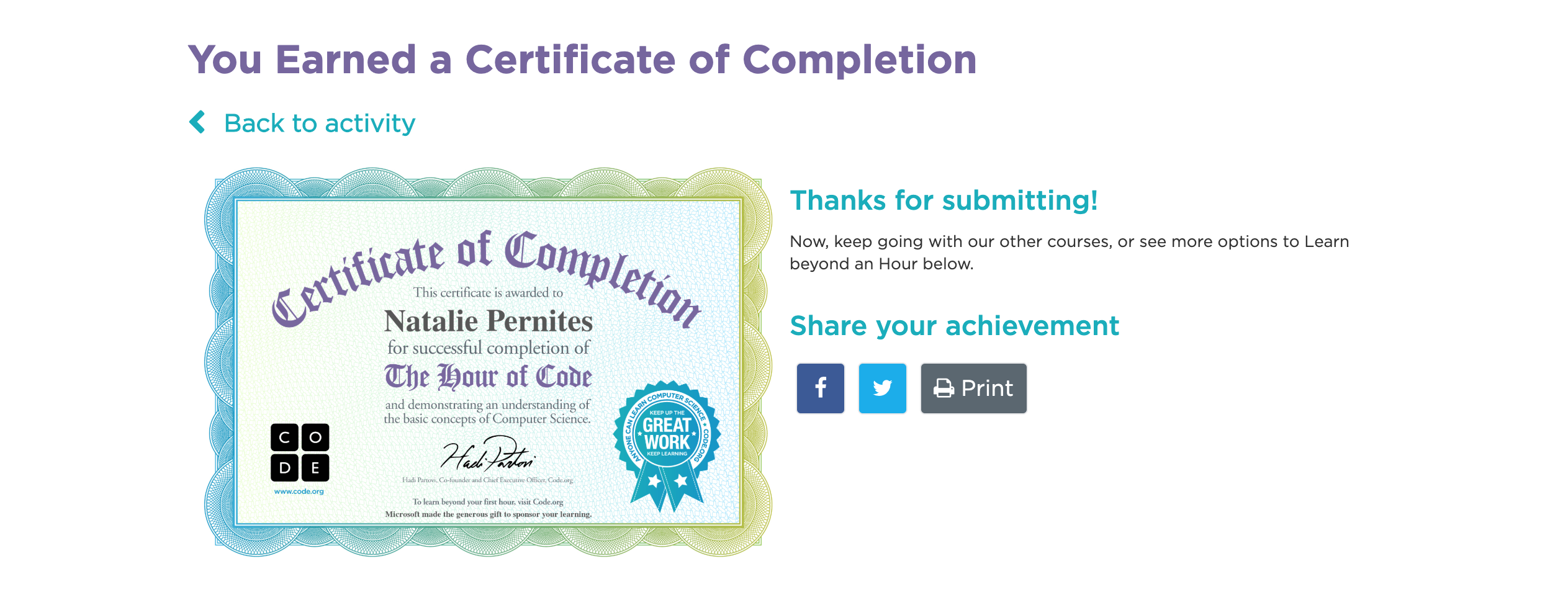
When I did the hour of code (since I am a beginner), I did the flappy bird activity first. That one was very easy, so I decided to up my game a little. I did the Anna and Elsa activity, and that one got hard for me. When my timer went off, I was stuck on level 14. Level 6 took me an awful long time, but I did it! Click here to see it! What I did like about both of these activities though, is they took it step by step and could give you hints if you needed them. These activities definitely used the four computational thinking skills, but the main one I feel like it hit on was decomposition. The article “Computational Thinking Across the Curriculum states, “With the power of decomposition, problems that seem overwhelming at first become much more approachable for students” (Sheldon, 2017). I definitely felt overwhelmed when I logged into code.org. As someone who isn’t super into coding, there was A LOT on there. When I picked my activities, I like that each level took it step by step and did one skill at a time to help ease you into harder skills.

What I also liked about this article is the advice it gave. It says, “Introduce some ambiguity in your projects, link lessons to real-world examples and evidence, and dream big” (Sheldon, 2017). I can apply this both in my classroom now and in my future library.

References

Sheldon, E. (2017, March 30). Computational thinking across the curriculum. Retrieved from https://www.edutopia.org/blog/computational-thinking-across-the-curriculum-eli-sheldon

Snelling, J. (2018, April 3). Don’t stress about coding: Focus shifts to teaching problem solving not computer skills. Retrieved from https://www.slj.com/?detailStory=dont-stress-coding-focus-shifts-teaching-problem-solving-not-computer-skills

Week 10: Presentation Tools!

This week, we were looking at presentation tools. I have used Prezi and Canva, so that left me with Smore, Emaze, and Haiku Deck.

I chose to use Emaze for my presentation. I felt this was more user friendly and I didn’t have to put my credit card information in :). I also liked that they had so many templates to chose from, whether it is a photo album, website, or presentation. I liked all the options they had for images to insert and that you can make the font 3D! I also like that you can view others’ templates. It reminded me a lot of Prezi but fancier! The last thing I liked was the animation. On the slide template, it came with those letters that shake when you roll your mouse over (see slide two). “Work animation into your slides for an added layer of emotional impact” (Reynolds, 2014, p. 255). Although it doesn’t necessarily have an emotional impact here, it makes the slide fun.

I chose to make my three slides about one of my favorite lessons to teach. I didn’t go into a lot of detail on these three slides because Reynolds says, “Avoid the death by Power-Point approach and don’t clutter your slides…” (2014, p. 255). I did need to make the second slide a little detailed so the viewer knew what they would need. If I had a fourth slide, I would have attached a hyperlink or QR code with the actual lesson. Putting the actual lesson on the slides (according to Reynolds) would be too much.

Click here for my presentation!

Reynolds, G. (2014). Presentation Zen Design, Second Edition. Berkeley, CA: New Riders.

Week 9: Makerspace!

When I first started my search for my article, I already knew the type of article I wanted to research. I know what makerspaces are and how fun they are, but I really wanted to know what students get out of them and ways to incorporate more than just “here’s the station, have fun!” type makerspace. The article entitled Problem Scoping: Design Thinking & Close Reading Makerspaces in the School Library by Megan Blakemore really helped me understand the benefits. Here are the three takeaways and which AASL Common Beliefs they fall under.

  1. “In the makerspace, before building students might write proposals. Students can also write reflections on the process or write their own instructional pieces” (Blakemore, 2018, p. 67). I always thought of makerspaces as being just a “hands on” learning tool, but I never thought of incorporating writing proposals BEFORE the activity. That is a great idea! This fits under AASL Common Belief #3: Learners should be prepared for college, career, and life (AASL, 2017). This fits here because in life, students may have a job where they have to write this type of writing, and it is extremely important to teach students to reflect on their work. This reflection step is the only way they can grow, and not enough students take the time to do this crucial life skill.
  2. “Connecting making and literacy has the potential for inviting students to engage with the text in new and deeper ways. Effective problem scoping from a literary work asks students to dig more deeply into the text to find relevant details” (Blakemore, 2018, p. 68). I also never thought of using a makerspace activity to relate to a book students are reading. Blakemore goes into detail in this article about how she reads the elementary school students a book such as The Young Man and The Sea, and their challenge is to make a boat for the main character (2018, p. 68). This way, they are connecting the book to the activity: it gives them a purpose and makes it fun and relatable. This relates to AASL Common Belief #4: Reading is the core of personal and academic competency. Under the description of this common belief, it it says: “School librarians curate current digital and print materials and technology to provide access to high-quality reading materials that encourage learners, educators, and families to become lifelong learners and readers” (AASL, 2017). I feel like this speaks for itself: the students are reading to encourage learning.
  3. “Rather than simply recreating something they have seen, when students complete the full design process they come up with novel ideas. Moreover, they can articulate how their invention solves the problem, thus demonstrating their problem-solving skills” (Blakemore, 2018, p. 69). I love the problem-solving part of this quote. Students need to know how to problem solve. This is an important life skill and this relates to AASL Common Belief #5: “Intellectual freedom is every learner’s right” (AASL, 2017). By allowing them to problem-solve on their own and figure out the solution to the character’s problem, they have the freedom to learn how they want.

I have learned through this article that makerspace is more than just building at random; it’s using multiple steps such as brainstorming, designing, building, testing and showcasing, aka problem scoping (Blakemore, 2018, p.67) to learn. I love the idea of incorporating literature into the makerspace activity; it’s like killing two birds with one stone!

References:

Blakemore, M. (2018). Problem scoping: design thinking & close reading makerspaces in the school library. Knowledge Quest,46(4), 66-69. Retrieved from http://eds.b.ebscohost.com.proxy.lib.odu.edu/ehost/detail/detail?vid=9&sid=ce704a0e-9502-430e-9f83-fb6af3f6c067@pdc-v-sessmgr02&bdata=JnNpdGU9ZWhvc3QtbGl2ZSZzY29wZT1zaXRl#db=llf&AN=128199635

Common beliefs. (2017). Retrieved from https://standards.aasl.org/beliefs/

Week Seven: Layered Reality

When I saw this week’s module, I knew what QR codes and virtual reality were, but I wasn’t so sure what augmented reality was. I liked that in the Dr. Kimmel’s video, she gave the example of Pokemon Go as augmented reality. That really helped me understand what it was, as did the Creative Commons photo of the girl at the museum. I have used augmented reality, but didn’t realize that’s what it was, but now I understand! The big difference between the three seems to be this: QR code requires scanning the code and opens a new window, augmented reality uses the camera on a phone and lets the viewer see things that are not there (like your Bitmoji character on certain Snapchat filters), and virtual reality uses the whole phone and immerses the viewer in a different “world” (like the Charles Dickens VR Museum experience).

How I would use QR codes in the library:

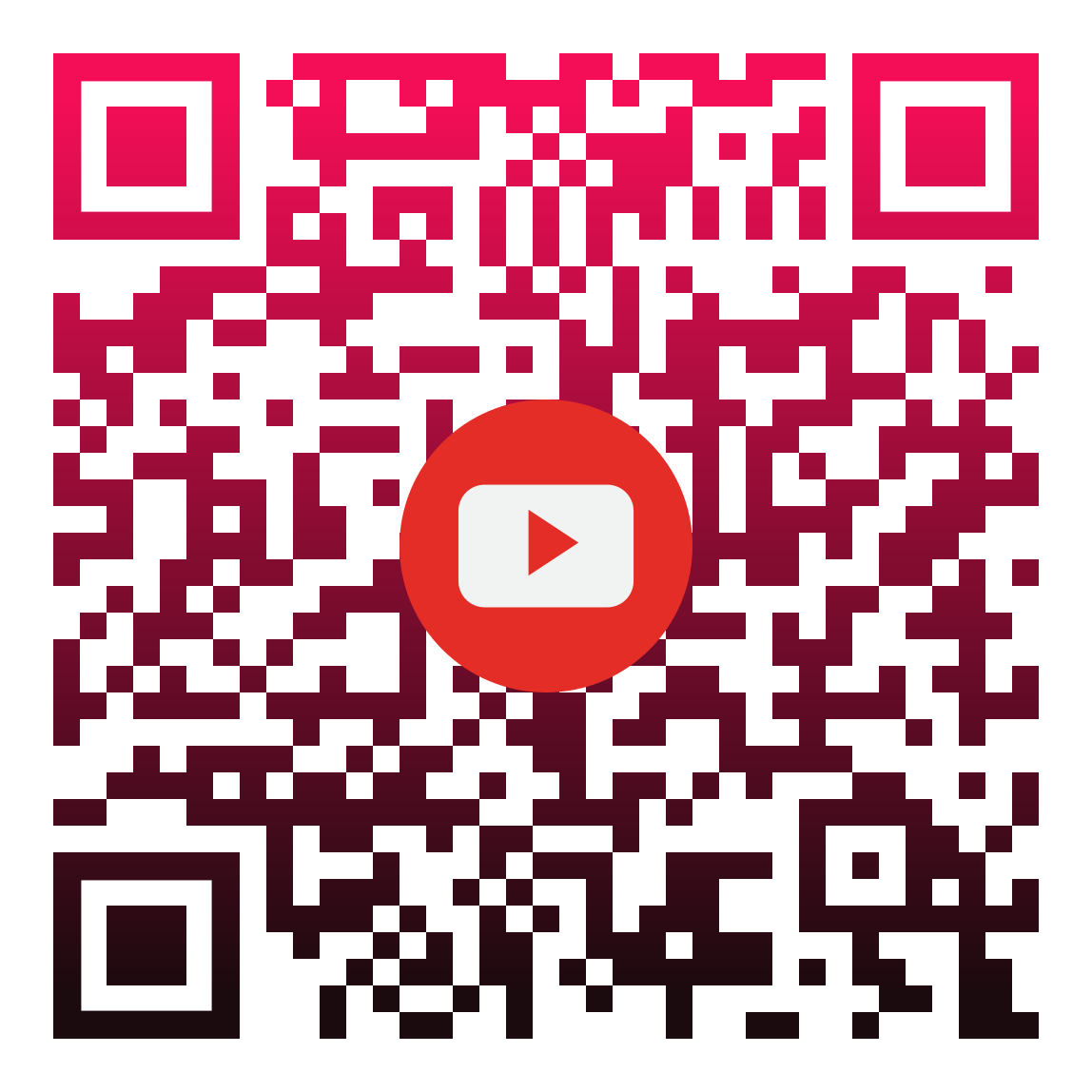
  1. Book reviews. With books on display, I could put a QR code next to the book that opens up a book trailer or a book review. I used QRCode Monkey because I liked that you could pick your colors as well as use a logo (such as youtube or instagram). I liked that because the kid can see the type of media they are about to scan before they start. Here is my example for a popular book students were reading at the end of the school year: Pretend She’s Here by Luanne Rice.

2. The second way I could use QR codes is for book club information. Students could scan the QR code to know the dates, times, and what books we are reading during book club meetings. It saves paper and they are more likely to remember (students don’t lose their phones as much as they lose papers!)

QRcode Monkey. (n.d.). QR Code Monkey. Retrieved from https://www.qrcode-monkey.com/#url

How I would use augmented reality in the library:

  1. I could do google expeditions in AR. For example, for health and physical education, I could do a google expedition on the nervous system. The beauty of this expedition is the kids don’t even have to come to the library; I could go to them! I would love to help as many subjects and grades as I can when I become a librarian.

    Hbernasconi. (2018, February 22). Nervous system #google expedition. Retrieved from https://www.tes.com/en-us/teaching-resource/nervous-system-googleexpedition-11510697

  2. I also found a program called “Metaverse” This program has some AR experiences already made (like this one) or you can make your own. The students would need this free application on their phones. I could always use this as an introduction “quiz” on how the library works. I go over the catalog, the location of the books, maker space, etc., and then they complete the AR on features of the library. First group to answer them all right and unscramble the letters wins!

Rcolosi. (n.d.). The Atticus Finch Challenge. Retrieved from https://mtvrs.io/SpiritedQuietHorseshoecrab

I would rather use augmented reality over virtual reality. The reason being I have done VR in my classroom, and a lot of kids get nauseous and take the goggles off, thus becoming unengaged. Plus, I could make digital breakout boxes using augmented reality. The possibilities are endless!

Week Six: Video Tools!

Videos are pretty fun to make and definitely a way to reach an audience of children; a lot of kids watch youtube and “how to” videos to learn! Like Reynolds says, “Photos can illuminate and educate, of course, but video imagery of the phenomenon takes us a little bit closer to being there and touches us more deeply” (Reynolds, 2014, p. 128).

I looked at the tools this week in the sandbox, but the ones I played around with the most were Loom, Animoto, and Powtoon.

I have viewed Powtoons before and have had students make them, but I myself have never created one. It was fun to mess around. I like that you can either create your own or upload a powerpoint you’ve already made. That can save you some time! I also like all the options that it has. I think this is a good tool to use in the library with younger kids; the graphics in my opinion appeal to a younger audience.

I also used Animoto. I liked this one because it too had templates for you to use, and it is short and to the point. Reynolds states on page 144 that you should keep your videos short and to about 30 seconds to keep the attention of the audience (2014). This program was perfect because the practice video I made was 11 seconds. The only thing I don’t like is that because it’s the free version, the watermark of the company is in the video. This program could be used in all libraries for all ages.

The last one I used was Loom. I like that Loom was able to be downloaded on my computer. I also liked that you can share your screen. I can easily see myself using this as a “how to” video on how to use the destiny catalog in the library or how to use google search engine properly when I become a librarian.

Here is my Loom example!

https://www.loom.com/share/fb6227429b88460a952f9138c32d2480

Week Five: Library Websites!

When I heard about the website project, I got really excited and started right away. I am glad, however, that our assignment this week is to research other library websites because now I know what I need to fix and good ideas on what I can add.

The first site I found is actually my best friend’s google site for her library. There are two things I really like about her site. The first one is she has a thinglink on her site for students to browse the nonfiction section before they even enter the library. I like this because it helps kids visually see the layout of the nonfiction section to help them find books easier. I also like it because it is promoting the nonfiction section (most students like reading fiction.) The second thing I like about her site is the use of a book suggestion google form. I like this because students are always finding new books, and it’s an easy way to keep track of what has been recommended and by whom. I plan on adding this as one of my external links.

Here is her site: https://sites.google.com/vbschools.com/kms-library/home?authuser=1

Note: I did have to login with my district’s google account in order for it to work. I am not sure if it works outside of that login.

The second one I found was a library in Massachusetts. What I liked about this site was it had a quick link to resources students use in this district on the side for quick access. I also like that the librarian used the photos of each site as the hyperlink. I also like the book lists picture that is hyperlinked on the right side. What I like about this is it features books for LGBTQ students, and students with disabilities. This site too had a google form book suggestion.

Here is the link: https://wmslib1.weebly.com/

Time to get back to working on my site!


Week Four (June 10-16): Audio Tools!

This was an interesting assignment as I don’t like the way my voice sounds on a recording, but I got over it and did it! I looked at all the tools in the sandbox for this week, and here’s how I feel about four of them:

  1. I really liked Vocaroo the best (in terms of user friendliness). The reason being is for one, it was very simple to use: you hit record, then stop, and then save. It will give you a link right there for you to use. I could see myself using this in my classroom for those students who are nervous to present. In 7th grade, we do a mythology project where students research a mythological figure and then present it to the class. Students get very nervous standing up there, but if they used Vocaroo and recorded what they want to say, it will relieve some of that fear. My only fear with this website is because of the way it looks and because it needs permission to use the microphone, it may be blocked on school computers.
  2. The second one I liked was SpeakPipe. Same user friendliness as Vocaroo but the only thing I did not like was that you had a limit of five minutes (in the free version). You could pay to upgrade, but the plans aren’t cheap, especially when you have over 100 students. I could use this in my classroom with my students’ writing portfolios. Like we do in this class, my students make blogs with their writings over the course of the year. Instead of typing their reflection at the bottom like I have had them do in the past, I could have them record their reflection and post the link instead.
  3. The last one which was really fun (and is below) was Blabberize. I could definitely use this in the library for book introductions (I would just need to work on fixing the mouths a little better!) I could have the book on display and a computer with the video up that the students could play. I would make a QR code with the video, but when I tried, the video would not play on my IPhone; I think it’s because the program uses flash, and IPhones do not support this. My husband also saw me making this and said he could use it in his science classroom. He said he would have students pick an animal, use that as the picture, and with this program, discuss the animal’s classification and biome they live in. This one would be used more in middle and high schools, while Vocaroo and SpeakPipe could be used in elementary.
  4. I did not like Audiopal. It was not user friendly. Every time I tried to record using the microphone, it would tell me my recording did not work, and I made sure the microphone was on. I don’t like that you can call to make your recording because thinking of school children, if you let them call this number, they may be calling others instead of this number. You can text to speech and have the program read it, but in my opinion, the voice sounds too robotic. I personally don’t like this one.

Click the link below for an example of how I could use it in my future library!

http://blabberize.com/view/id/1872304

Adapted from OpenClipArt-Vectors. (April 1, 2016). Actor-boy-celebrity-daniel radcliffeharry potter [Digital Photo]. Pixabay. Retrieved from https://pixabay.com/vectors/actor-boy-celebrity-1299629/. CC BY

Week Three June 3-9: Infographic Time!

Side note: with my citations, the piktochart program would not let me italicize my titles for some odd reason.

This was REALLY fun to make! Once I picked my template, I just couldn’t stop! I have worked at Sterling Meadows every summer/holiday since I was seventeen, so when I found out we could pick any topic, I picked an infographic on this wonderful, locally owned company! If you live near Virginia Beach, you should totally bring your pup!

I used Piktochart for my infographic. I felt like their templates were the easiest to use. I started with easel.ly, but I didn’t like that you only had a few options. The challenges I encountered for positioning of images and text. If I had a wireless mouse, I think I could have finished a lot faster, but I left that at school! I think about that with my students as well, but I think they have more patience than I do! At some points, I was ready to throw in the towel because I would make a slight change and BOOM, everything would move! I finally figured out I could lock everything in place, so that definitely helped!

When teaching infographics to my middle school students, I will be very specific in what they need to include. I will let them design it however they like, but when it comes to the information that needs to be included, I will let them know what I want. I also like to provide them with examples, so this project is perfect to use as an example. I think this would be a fun review assignment; each kid gets an English topic, and they must make an infographic on what we should remember about that topic. For example, a student could get figurative language and make a piktochart on all the different types we have studied over the course of the year.

What I do wonder is if students can work on the same infographic at the same time? With google slides, students can have the same slide presentation up on their individual computers, and make edits at the same time. Can you do that with these infographic websites?

Week Two May 27th-June 2nd: Using Images

Audience, Bleachers, Crowd, Game, Match, People, Soccer

Pexels. (September 14, 2016). Audience-bleachers-crowd-gamematch-people-soccer [Digital Photo]. Pixabay. Retrieved from https://pixabay.com/photos/audience-bleachers-crowd-game-1866738/. CC BY

I picked this photo because the Women’s World Cup starts next month and I am SO EXCITED. We are going for our fourth gold!

Dog, Golden Retriever, Art, Animal, Vintage

Ractapopulous. (April 19, 2017). Dog-golden retriever-art-animal-vintage[Digital Photo]. Pixabay. Retrieved from https://pixabay.com/illustrations/dog-golden-retriever-art-animal-2242836/. CC BY

I picked this photo because my dad’s dog, Kona, is the smartest and most well behaved dog I have ever met. He’s older now (eleven), so I love how much this pup looks like him. It makes me happy.

Adapted from Ractapopulous. (April 19, 2017). Dog-golden retriever-art-animal-vintage[Digital Photo]. Pixabay. Retrieved from https://pixabay.com/illustrations/dog-golden-retriever-art-animal-2242836/. CC BY

With my adaptation, I added the Man’s Best Friend at the top since Kona is literally my dad’s best friend.

Whew, this week at first scared me. I have never really thought about copyright until after our first video on the importance. Now, I totally get it. I think about me and if I took the amazing picture of the golden retriever above, I wouldn’t want people making money off of something I made and not giving me credit for it/a share of the profits. With that being said, that is exactly how I will teach my students in the future when students are working on a project. I know my middle schoolers are all about money, so if I frame it in that state of mind, they will take it more seriously. The one question I have is there a website where you can plug this in and it makes the citation for you (like easybib.com)? Following the example from the lecture was easy, but what about for twelve year olds? They may struggle.

In my classroom, I could teach them this by making my own picture of the citation and then using foldplay.com, make a puzzle, and they work as a group to put the pieces together. We could discuss what they noticed and what goes where. Then, they could write this on their notes paper so they have it as a guide. It could also be a breakout box lesson where they have a picture and then each part of the citation helps them break out. That would make it fun and help them remember more than if I just go over it at the front of the room.

In my English specific class when it comes to the curriculum I teach now, I could again use foldplay.com, have them write a short story, and make a fold book of their photos and writing. That would be pretty fun!